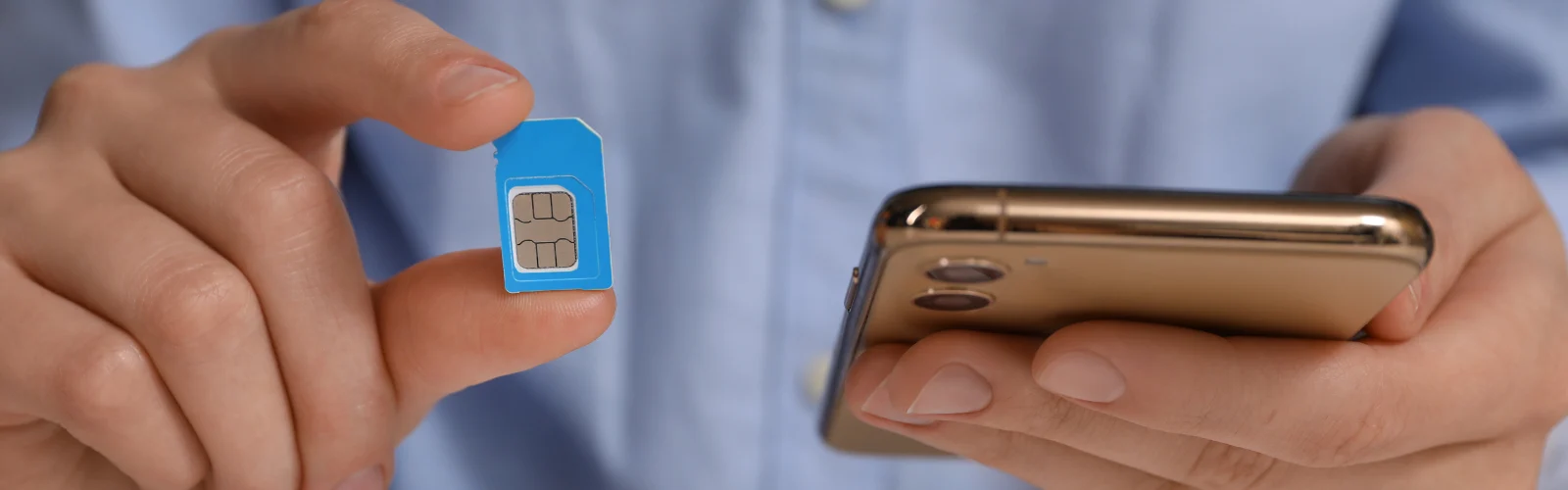

Considering upgrading to the iPhone Air? Before you click “Add to Cart”, there’s one feature you should know about: the iPhone Air is eSIM only, meaning it has no physical SIM card tray.
Is this a big deal? Yes — but in a good way!
The iPhone Air has deliberately removed the need to insert a small plastic chip into the side of your phone, instead ensuring your mobile service is now completely digital. This might feel like stepping into a bold new future and it might even be a little intimidating if you’re not the best with technology.
Don’t worry! If this revelation has you hesitating, here’s a little more info about the iPhone Air’s eSIM setup, including everyday use, travelling the world, managing two numbers, and fixing the most common issues.
What “eSIM-only” means on the iPhone Air
The iPhone Air being “eSIM-only,” means that it relies only on eSIM technology. In other words, there’s no physical SIM card tray built into the phone.
Now, instead of fiddling with a tiny SIM card, needing to insert it into your device for service, you can activate your mobile plan digitally. This might involve using your carrier’s app, scanning a QR code, or setting things up manually with your iPhone Air’s settings.
In practice, this change means:
- No more physical SIM card swapping
- No need to go to the store to activate a new phone number
- No inserting your old SIM into a new device (unless your carrier also supports transferring that number to eSIM)
If this is your first foray into the world of eSIM technology, this might seem like a hassle. Rest assured, however, that eSIMs are fast, secure, and considerably more flexible than their physical counterparts — especially for anyone who needs to manage more than one number.
The benefits of iPhone Air eSIM for everyday use
At first glance, a switch to an eSIM might feel like sacrificing a bit of control (after all, you can’t physically swap your phone number via a SIM card anymore), but trust that once you get used to it, the benefits really start to add up.
Here are a few reasons why you’ll love the eSIM only feature of the iPhone Air:
- Instant Activation – Instead of waiting for your SIM card to arrive in the mail, you can activate a new number via eSIM completely over WiFi
- Store Multiple Plans – the iPhone Air supports up to eight eSIMS, which means you can switch between carrier or numbers all electronically
- Dual SIM Convenience – you can also have two active eSIMs simultaneously to help keep your numbers organized (think: one for work and one for travel)
- Better Security – without an item that can physically be stolen, your private number is more secure electronically within your device, adding a layer of protection to your calls, messages, and verification codes
Why the iPhone Air is a travel powerhouse with eSIM
In the past, international travellers seeking to stay in touch often had to:
- Search SIM card kiosks at airports or seek out local shops
- Navigate language barriers and incompatible SIM card sizes
- Worry about juggling multiple little plastic pieces while on the go (and not lose them)
Now with an eSIM-only phone, you can:
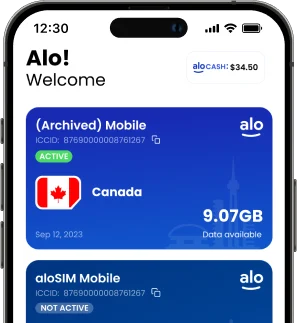
- Download and install an aloSIM eSIM plan before you head to the airport
- Toggle over to a local data plan with ease
- Keep your home number active for iMessage or emergency calls while using local data
- Save money without worrying about roaming fees (while still accessing high-speed data abroad)
Setting up eSIM on the iPhone Air (step-by-step)
All you need is Wi-Fi and a carrier to set up eSIM on your iPhone Air.
1. Adding your first eSIM
Once connected to the Wi-Fi, open Settings, tap Cellular or Mobile Data, select Add eSIM, and then choose how you want to activate it. This might be via your carrier’s app or via entering the activation details manually. Just follow the prompts and your device should be activated within a few minutes.
2. Transferring an existing number to eSIM
You can transfer your number during device setup, through the option in Cellular settings or by contracting your carrier for eSIM activation support.
3. Managing multiple eSIM profiles
The iPhone Air supports two active numbers at the same time, allowing you to make and receive calls and texts on both. You can also store several other eSIM profiles and simply switch between them when needed for work, travel, or play.
Using eSIM on iPhone Air while travelling
The iPhone Air provides several smart ways to stay connected abroad without giving up your home number. Keep your primary number active for texting and iMessage while using an aloSIM eSIM just for data, which is convenient for short trips when you still need to receive codes, calls from home, or other important messages.
If you’re visiting multiple countries, aloSIM offers a worldwide selection of eSIM plans to make things even easier, including regional plans, so you don’t need to install a new one in each country.
Taking a short trip? Keep your home number on for calls and messages, and add a travel eSIM just for data. Planning to be away longterm? Use a local carrier eSIM for calls, texts, and data, and leave your home line on standby.
Battery saving tips for eSIM-heavy use
Occasionally switching between carriers or using multiple eSIMs might drain your battery, especially if your phone is constantly searching for a network.
You can reduce battery use by turning off the eSIM you’re not actively using, disabling 5G coverage when cellular service is poor, and using low power mode during long travel days.
You can also limit your background app refresh, and use secure Wi-Fi networks (when available) to conserve battery power even longer.
Common eSIM issues and how to fix them
Even as advanced as eSIM technology may be, there are still occasional bumps to navigate.
- Activation difficulties – check your Wi-Fi, restart your device, and check the QR code is still valid
- No network after setup – switch Airplane Mode on and off, or choose the network manually
- Carrier not supported – always check with your provider before buying or transferring your number
iPhone Air eSIM FAQs
Can I still use two numbers on the iPhone Air?
Yes, you can use two numbers on the iPhone Air.
Is eSIM safer than a physical SIM when travelling?
An eSIM is generally considered to be safer than a physical SIM for travelling due to it’s embedded nature. It cannot be lost or physically removed from a device, which adds an extra layer of security. Of course, it is still good to take the necessary precautions, as both physical SIMs and eSIMs can fall victim to other cyber attacks, though the chances are slim.
How many eSIMs can I store on the iPhone Air?
The iPhone Air allows you to store 8 or more eSIM profiles. Users can have 2 eSIMs active at a time.